
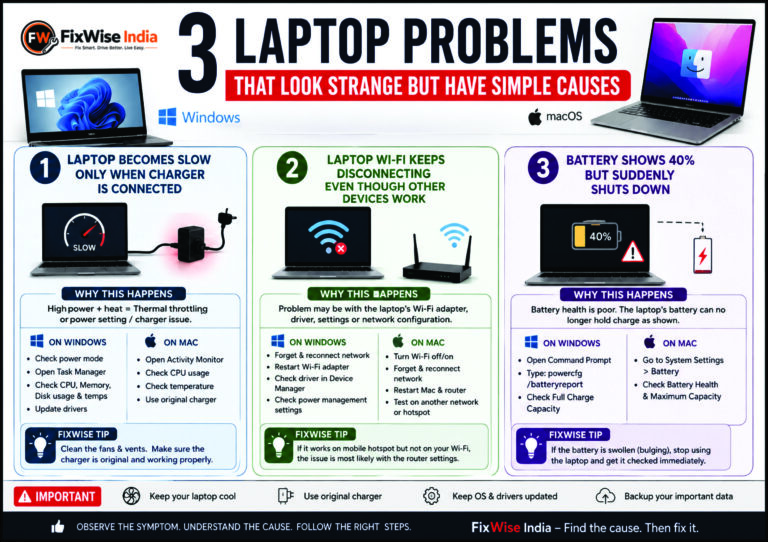
Laptops don’t always fail in an obvious way.
Sometimes the laptop works perfectly on one day and behaves strangely the next. It may become slow only when you connect the charger, repeatedly lose Wi-Fi, or show 40% battery and suddenly shut down.
These problems can happen on both Windows laptops and Apple MacBooks.
Before assuming that the laptop needs an expensive repair, try to understand the symptom first.
Here are three less-obvious laptop problems and what you can check.
1. Laptop Becomes Slow Only When the Charger Is Connected
This sounds unusual.
Normally, connecting the charger should allow the laptop to perform better because it has access to more power.
But sometimes the opposite happens.
The laptop may become:
- Slow
- Laggy
- Hot
- Noisy because the fan runs faster
- Slow when opening applications
- Slow during video playback
Why can this happen?
One possibility is thermal throttling.
When the laptop is connected to power, the processor may operate at higher performance levels.
That can produce more heat.
If the cooling system cannot remove the heat properly, the processor may reduce its speed to protect itself.
On Windows
Open Task Manager by pressing:
Ctrl + Shift + Esc
Look at:
- CPU usage
- Memory usage
- Disk usage
- Processes using unusually high resources
Also check the Windows power mode.
Depending on your Windows version, you may find it under:
Settings → System → Power & battery
If the laptop becomes slow specifically when plugged in, compare its temperature and CPU behaviour on battery and AC power.
On Mac
Open Activity Monitor.
You can find it through:
Applications → Utilities → Activity Monitor
Check CPU usage and look for applications consuming unusually high resources.
Also pay attention to whether the Mac becomes unusually hot or the fans run continuously.
Other possible causes
The charger itself can sometimes be part of the problem.
A damaged, incompatible or poor-quality charger may cause unusual power behaviour.
For laptops that use USB-C charging, the charger and cable should provide the required power for the particular model.
FixWise Tip
Don’t immediately assume:
“Laptop slow = Windows problem.”
If it becomes slow only when charging, heat, power management, charger compatibility or a high-power process should be investigated first.
2. Laptop Wi-Fi Keeps Disconnecting While Other Devices Work
This is another frustrating problem.
Your phone works perfectly on the same Wi-Fi network.
Your TV works.
Another laptop works.
But your laptop keeps disconnecting.
That is an important clue.
The problem may be with the laptop rather than the router.
Windows checks
Start with the simple things.
Step 1: Forget the Wi-Fi network
Go to:
Settings → Network & internet → Wi-Fi → Manage known networks
Select your network and choose Forget.
Connect again and enter the password.
Step 2: Restart the Wi-Fi adapter
Open Device Manager.
Go to:
Network adapters
Find your wireless adapter.
You can disable it and enable it again.
If Windows reports a driver problem, the Wi-Fi driver may need attention.
Step 3: Check power management
Some Windows laptops may reduce power to the wireless adapter to save battery.
In Device Manager, open the properties of the wireless adapter and look for its Power Management settings.
The exact options depend on the laptop and Wi-Fi driver.
Mac checks
On a Mac, start with the basic checks:
- Turn Wi-Fi off and on
- Forget and reconnect to the network if necessary
- Restart the Mac
- Restart the router
- Check whether the problem happens on another Wi-Fi network
If the Mac works normally on another Wi-Fi network, the problem may be related to the original router or network configuration.
If it disconnects from multiple networks, the Mac itself deserves closer investigation.
A useful clue
Try connecting the laptop to your phone’s mobile hotspot.
If the laptop works perfectly with the hotspot but repeatedly disconnects from your home Wi-Fi, don’t immediately replace the laptop’s Wi-Fi hardware.
The problem could be related to the router, Wi-Fi band, driver or network configuration.
3. Laptop Battery Shows 40% but Suddenly Shuts Down
This can be scary.
You see:
Battery: 40%
Then suddenly:
Laptop turns off.
You switch it on again and the battery percentage may be very low.
This can happen when the reported battery percentage no longer accurately represents the battery’s actual condition.
Why does this happen?
Laptop batteries gradually lose capacity as they age.
The battery management system estimates the remaining charge, but the estimate can become less accurate.
A battery might report 40% while its actual usable capacity is much lower than expected.
Battery health is therefore more important than the percentage alone.
Windows: Check Battery Health
Recent Windows versions can generate a battery report.
Open Command Prompt and run:
powercfg /batteryreport
Windows will create a battery report that can show information such as:
- Design capacity
- Full charge capacity
- Battery usage
- Battery history
If the full charge capacity has dropped significantly compared with the original design capacity, the battery may be heavily worn.
Mac: Check Battery Health
On a Mac, go to:
Apple menu → System Settings → Battery → Battery Health
Depending on the macOS version and Mac model, you may see information such as:
- Maximum Capacity
- Battery condition
- Cycle information
If macOS reports that the battery requires service, it is worth getting the battery inspected.
Don’t Ignore a Swollen Battery
There is one battery problem you should not troubleshoot yourself.
If the laptop’s:
- Trackpad is lifting
- Bottom cover is bulging
- Keyboard appears raised
- Case is separating
the battery may be swollen.
Stop using the laptop and get it professionally inspected.
Do not puncture, press, bend or attempt to remove a swollen lithium-ion battery unless you are properly equipped and trained to do so.
Windows vs Mac: What Should You Check First?
| Problem | Windows | Mac |
|---|---|---|
| Slow when charging | Power mode, Task Manager, temperatures, charger | Activity Monitor, temperatures, charger |
| Wi-Fi disconnecting | Adapter, driver, power management | Wi-Fi settings, network testing |
| Battery suddenly drops | Battery Report | Battery Health / Maximum Capacity |
| Overheating | Task Manager + cooling | Activity Monitor + cooling |
| Swollen battery | Stop using and service | Stop using and service |
A Simple Diagnostic Rule
Don’t start by replacing parts.
Start with the symptom.
Ask yourself:
Does the problem happen only when charging?
Think about power, heat and charger compatibility.
Does Wi-Fi fail only on this laptop?
Think about the laptop’s adapter, driver or network configuration.
Does the battery percentage suddenly become inaccurate?
Think about battery health and capacity.
This approach can prevent unnecessary repairs.
When Should You Take the Laptop to a Technician?
Get professional help if:
- The laptop becomes extremely hot
- It shuts down repeatedly
- The charger or charging port becomes unusually hot
- You smell burning
- The battery is swollen
- Wi-Fi hardware appears to be failing
- The laptop shuts down even with a healthy charger
- The problem continues after software troubleshooting
And always back up important data before major hardware or operating-system repairs.
FixWise India Tip
The most useful information you can give a technician isn’t:
“My laptop is not working properly.”
Instead, describe the exact behaviour:
“It becomes slow only when I connect the charger.”
or
“Wi-Fi disconnects only on this laptop, while my phone works normally.”
or
“The battery shows 40%, but the laptop suddenly shuts down.”
A precise symptom gives the technician a much better starting point.
Final Takeaway
Many laptop problems look complicated because the symptom doesn’t immediately reveal the cause.
Whether you use Windows or a Mac, start with observation:
When does the problem happen? What changes when you connect the charger? Does another Wi-Fi network work? Does the battery percentage match actual usage?
Those small clues can save time, money and unnecessary part replacements.
FixWise India — Find the cause. Then fix it.